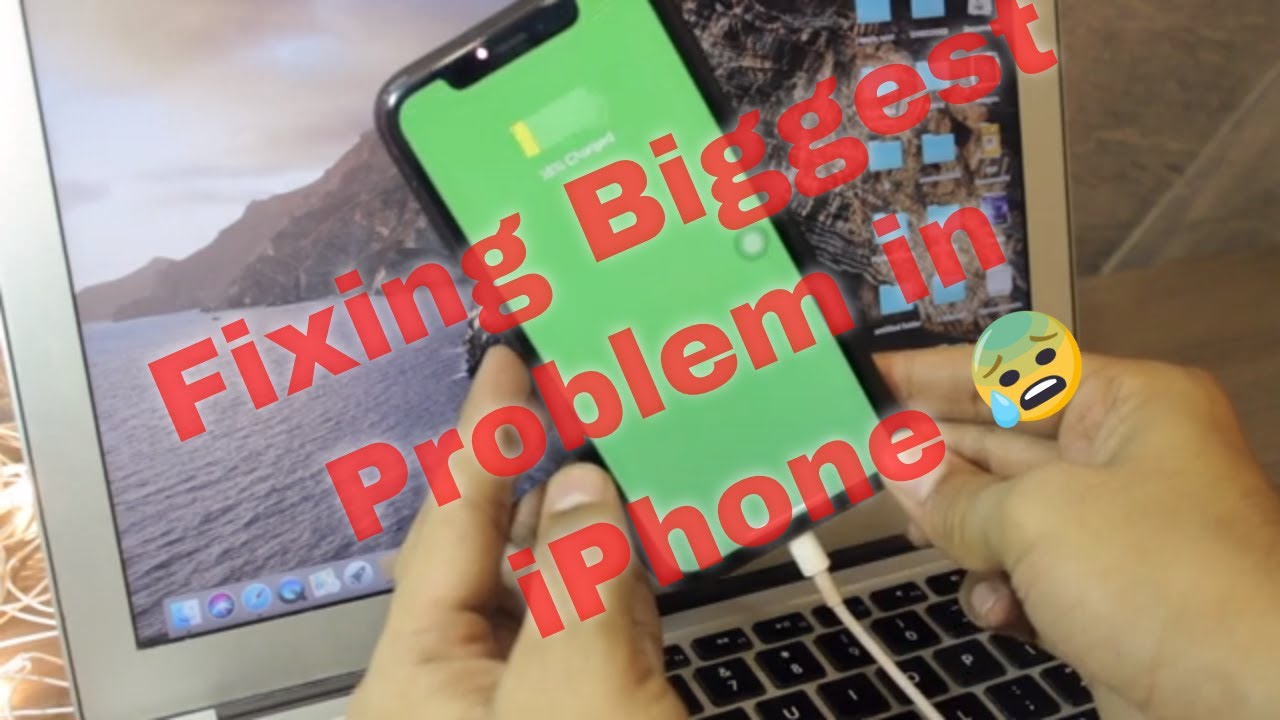
Fix iPhone Not Connecting to Windows PC: A Complete Guide
There are few tech frustrations quite as common as when your iPhone stubbornly refuses to connect to your Windows PC. Whether you're trying to sync photos, back up important data, update software, or simply transfer files, a broken connection can bring your productivity to a grinding halt. This comprehensive guide is designed to walk you through every possible troubleshooting step, ensuring you can get your iPad or iPhone recognized and communicating flawlessly with your Windows computer. Even users familiar with the Apple ecosystem, perhaps owning a MacBook, might find themselves needing to bridge this gap with a Windows machine, and these issues are surprisingly common.
From simple checks to more advanced solutions, we'll cover the necessary actions to diagnose and resolve connectivity problems. We understand that your iPhone holds a wealth of important information, and maintaining a reliable connection to your PC is often key to managing and protecting it.
Initial Checks: The Foundation of Troubleshooting
Before diving into complex solutions, it's always best to start with the most basic and often overlooked troubleshooting steps. Many connection issues can be resolved with these simple actions.
1. Verify Your USB Cable and Ports
- Use a Certified Cable: The most frequent culprit behind connection woes is often the USB cable itself. Always ensure you're using an Apple-certified Lightning to USB cable. Counterfeit or uncertified cables may charge your device but often lack the necessary data transfer capabilities or stability. These can lead to frustrating "accessory not supported" messages or intermittent connections. You can often identify MFi (Made For iPhone/iPad) certified accessories by checking Apple's public database or looking for the MFi logo on packaging.
- Inspect for Damage and Debris: Carefully examine both ends of your Lightning cable for any signs of fraying, bending, or damage. Similarly, check the Lightning port on your iPhone or iPad, as well as the USB ports on your PC, for any lint, dirt, or debris that might be obstructing a proper connection. A gentle puff of compressed air can often clear out blockages.
- Try Different Ports and Cables: Test your connection using different USB ports on your PC (try both front and back ports, USB 2.0 and USB 3.0 if available). If possible, try a completely different, known-good Apple-certified cable. This helps to isolate whether the issue lies with your cable, a specific port, or the device itself.
2. Restart Your Devices
It sounds cliché, but a simple restart can magically resolve a surprising number of temporary software glitches and communication errors. Power cycle both your iPhone and your Windows PC. Turn them off completely, wait for about 30 seconds, and then power them back on. Once both are fully booted, try connecting your iPhone again. If a regular restart doesn't work for your iPhone, consider a force restart:
- For iPhone 8 or later (including iPhone SE 2nd and 3rd gen): Press and quickly release the Volume Up button, then press and quickly release the Volume Down button, then press and hold the Side button until you see the Apple logo.
- For iPhone 7/7 Plus: Press and hold both the Volume Down button and the Sleep/Wake button simultaneously until you see the Apple logo.
- For iPhone 6s or earlier (including iPhone SE 1st gen): Press and hold both the Sleep/Wake button and the Home button simultaneously until you see the Apple logo.
3. Disconnect Other USB Devices
Sometimes, other USB peripherals connected to your PC can create conflicts or draw too much power, preventing your iPhone from establishing a stable connection. Disconnect all unnecessary USB devices, leaving only your keyboard and mouse connected, and then try connecting your iPhone again.
Software and Driver Essentials for Seamless Connection
Once you've ruled out hardware issues, the next step is to ensure your software environment is correctly configured on both your iPhone and your Windows PC.
1. Install and Update iTunes or Apple Devices App
For your Windows PC to properly recognize and communicate with your iPhone or iPad, you need the appropriate Apple software installed. This software provides the necessary drivers and utilities for managing your device.
- For Windows 10/11: The recommended approach is to download iTunes (or the newer Apple Devices app for Windows 11) directly from the Microsoft Store. This version is often more stable and receives automatic updates. The Apple Devices app, along with separate Apple Music and Apple TV apps, represents Apple's latest approach to managing your media and devices on Windows.
- For older Windows versions or direct download: You can still download iTunes from Apple's website.
- Ensure Latest Version: Regardless of where you get it, always make sure you're running the latest version of iTunes or the Apple Devices app. Outdated versions may lack compatibility with newer iOS or iPadOS versions. Open the app and check for updates within its menu or via the Microsoft Store.
2. Update Your iPhone's iOS Software
Outdated iOS on your device can sometimes lead to connectivity problems with your PC. Apple frequently releases updates that improve compatibility, fix bugs, and enhance security. Ensure your iPhone or iPad is running the latest available software version:
- Go to Settings > General > Software Update on your iPhone.
- If an update is available, download and install it. Make sure your device is connected to Wi-Fi and has sufficient battery life or is connected to power.
3. Trust This Computer
When you connect your iPhone or iPad to a new computer for the first time, or after certain system resets, you'll see a "Trust This Computer?" alert on your device. This is a crucial security feature. You must unlock your iPhone and tap "Trust" on the prompt for the computer to gain access to your device's data. If you accidentally tapped "Don't Trust," or if the prompt never appeared, try disconnecting and reconnecting your iPhone, then ensure it's unlocked when you plug it in.
Addressing Advanced Connection Hurdles
If the above steps haven't resolved your issue, it's time to dig a bit deeper into potential software conflicts or device-specific settings.
1. Reset iPhone Settings (Without Erasing Data)
Sometimes, corrupted network, location, or privacy settings on your iPhone can interfere with its ability to establish a connection. You can reset these settings without losing any of your personal data:
- Go to Settings > General > Transfer or Reset iPhone > Reset.
- Here you have several options:
- Reset Network Settings: This will reset Wi-Fi networks and passwords, cellular settings, and VPN/APN settings. You'll need to re-enter Wi-Fi passwords.
- Reset Location & Privacy: This will reset your location services and privacy settings to their factory defaults. This is particularly useful if the "Trust This Computer" prompt isn't appearing.
- Try one or both of these, then restart your iPhone and PC, and attempt to connect again.
2. Check Apple Mobile Device USB Driver
On Windows, the Apple Mobile Device USB Driver is essential for your PC to communicate with your iPhone or iPad. If this driver is corrupted or not installed correctly, your device won't be recognized.
- Connect your iPhone to your PC.
- Open Device Manager on your Windows PC (search for it in the Start menu).
- Expand the "Universal Serial Bus controllers" section.
- Look for "Apple Mobile Device USB Driver." If it's there, right-click and select "Update driver." Choose to search automatically for updated driver software.
- If you don't see it, or if it has an error symbol, you might need to reinstall iTunes or the Apple Devices app, as this driver is usually bundled with them.
3. Try a Different Computer
As a diagnostic step, if you have access to another Windows PC, try connecting your iPhone to it. If it connects successfully to the other computer, this strongly suggests the problem lies with your original PC's configuration, drivers, or specific ports, rather than your iPhone or cable. This helps narrow down your troubleshooting focus significantly.
The Critical Role of Backups and Restores
While the primary focus of this guide is connectivity, it's vital to discuss the overarching importance of backups, especially when dealing with stubborn connection issues that might ultimately require more drastic measures.
Sometimes, an iPhone might become completely unresponsive or locked due to too many incorrect passcode attempts, displaying an "iPhone Unavailable" or "Security Lockout" message. In such scenarios, the only viable solution to regain access to your device is to erase it and restore it to factory settings. This process often requires connecting to a PC or Mac. If you find yourself in this situation and have forgotten your passcode, you'll need to prepare for a full device reset. For a detailed walkthrough on this process, refer to our guide: Forgot iPhone Passcode? Erase & Restore Your Device Safely.
This is where regular backups become your digital lifeline. Apple provides two primary methods for backing up your iPhone or iPad:
- iCloud Backup: Automatically backs up your device over Wi-Fi when connected to power, locked, and on Wi-Fi.
- Computer Backup: Using iTunes or Finder (on MacBook/macOS) allows for a local, encrypted backup of your device to your computer.
If your iPhone was once trusted by your computer and you're now facing connection issues but it's not yet locked out, you might still be able to initiate a backup before resorting to any irreversible steps. This last-ditch backup could save you from significant data loss. If you regularly back up to iCloud or your computer, then even if you need to erase your iPhone, you can restore all your valuable data, settings, and apps seamlessly. For a deeper dive into why backups are non-negotiable, check out our article: Secure Your Data: The Crucial Role of iPhone Backups and Restores.
Conclusion
Connecting your iPhone or iPad to your Windows PC should be a straightforward process, but as we've explored, various factors can disrupt this connection. By systematically working through these troubleshooting steps—from checking your cables and ports to ensuring all software and drivers are up to date—you stand an excellent chance of resolving most issues. Remember the golden rule of tech support: start simple, then escalate. And above all, prioritize regular backups. It's the ultimate safety net for your digital life, ensuring that even if the worst happens, your precious memories and important data remain safe and sound, ready to be restored onto a functioning device.